
JavaScript Modules: Import and Export Explained

1. Why Modules Are Needed in JavaScript
Before modules existed, every piece of JavaScript code lived in one shared, global space. As applications grew, this created real problems. Let me walk through what went wrong — and how modules fixed it.
The problem: code without boundaries
Imagine you're building a small app. You write a few functions, everything works. Then the app grows. You add more files. More collaborators. And suddenly...
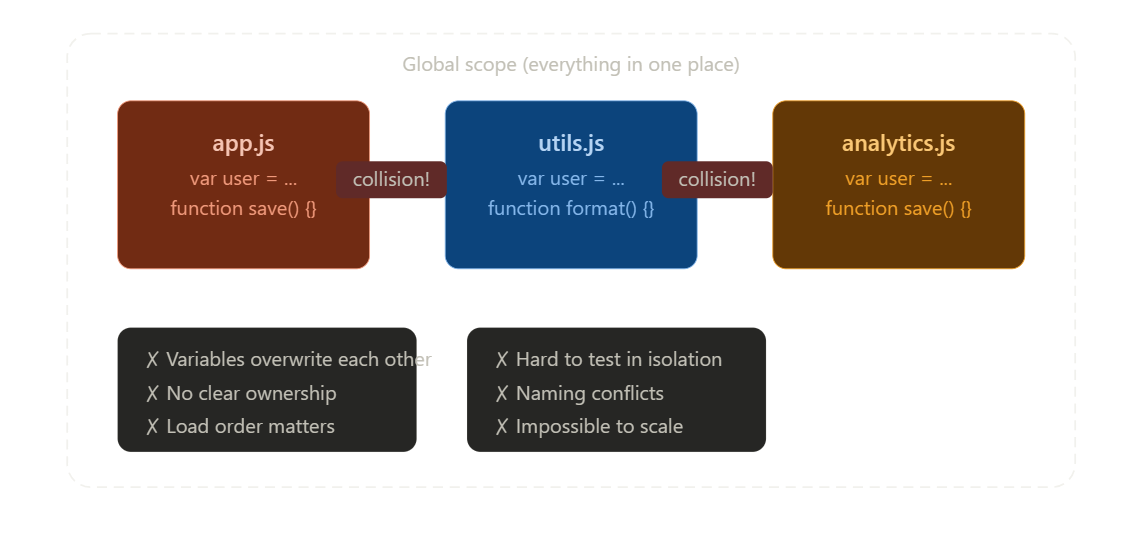
Two files both declaring var user or function save() — one silently overwrites the other. No warning, no error. Just broken behavior that's a nightmare to trace.
The solution: modules give code its own space
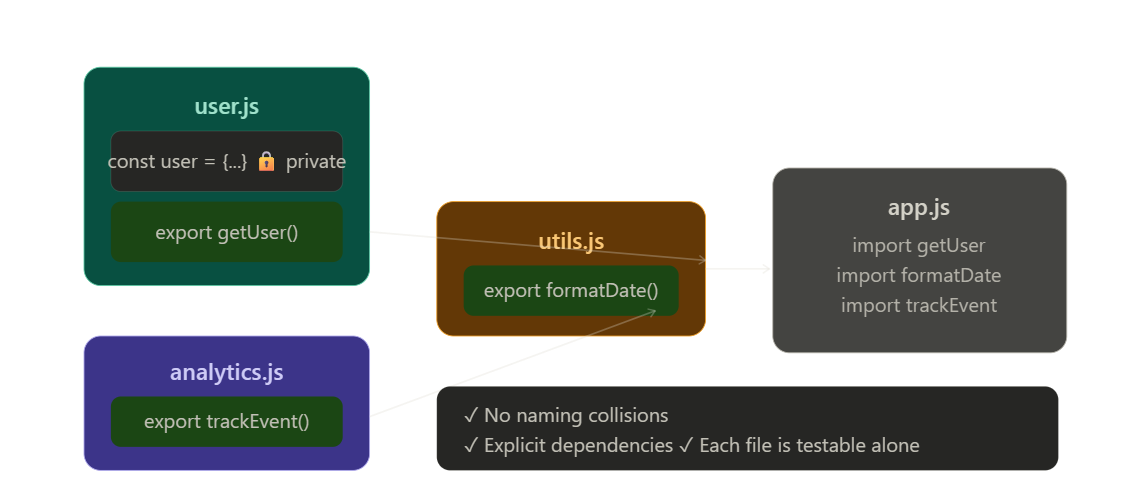
A module is simply a file that keeps its internals private and only shares what it explicitly chooses to. Think of it like rooms in a building — each room has its own things, and the only way to pass something between rooms is through a door you deliberately open.
Here's what that looks like in practice:
// user.js — a module
const user = { name: "Alice" };      // private, nobody else sees this

export function getUser() {          // explicitly shared
  return user;
}
// app.js
import { getUser } from './user.js'; // you ask for exactly what you need
How modules improve maintainability
Once your code is split into modules, three things get dramatically easier:
Finding things. If something breaks in the user login flow, you know to look in auth.js — not scroll through a 2,000-line file.
Changing things safely. A module's internals are isolated. You can refactor utils.js without worrying that some other file is secretly depending on a variable you renamed.
Working as a team. Two developers can work on two modules simultaneously without constantly stepping on each other's code.
The key insight is that modules enforce a simple discipline: you must say what you need, and say what you share. That explicitness is what makes large codebases manageable.
2. Exporting Functions or Values in JavaScript Modules
Once you understand why modules exist, the next step is learning how to share things between them. That's what exports are for — they're the deliberate "doors" a module opens to the outside world.
There are two styles of export in JavaScript: named exports and default exports. Let's break both down.
Named exports
You can export as many things as you want from a single file, each with its own name.
// math.js
export const PI = 3.14159;

export function add(a, b) {
  return a + b;
}

export function subtract(a, b) {
  return a - b;
}
When importing, you use curly braces and reference the exact name:
// app.js
import { PI, add, subtract } from './math.js';

console.log(add(2, 3));   // 5
console.log(PI);           // 3.14159
You can also rename during import to avoid conflicts:
import { add as sum } from './math.js';
console.log(sum(2, 3)); // 5
Default exports
Each module can have one default export. It's typically used when a module represents a single main thing — a class, a component, or a primary function.
// greet.js
export default function greet(name) {
  return `Hello, ${name}!`;
}
When importing a default export, there are no curly braces, and you can name it anything:
// app.js
import greet from './greet.js';
import sayHello from './greet.js'; // also valid — same thing

console.log(greet("Alice")); // Hello, Alice!
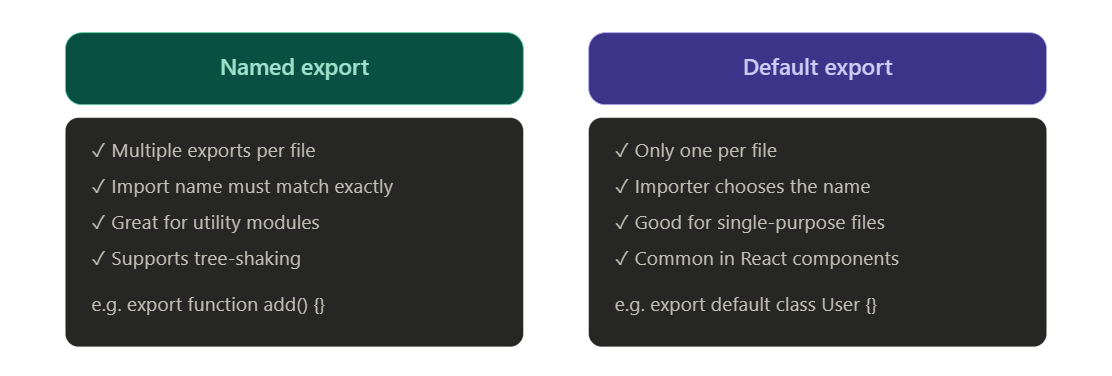
Named vs default — when to use which
You can also mix both in the same file — though it's a good idea to do so sparingly:
// user.js
export const MAX_AGE = 120;                 // named export

export default class User {                 // default export
  constructor(name) {
    this.name = name;
  }
}
import User, { MAX_AGE } from './user.js';
Quick reference
| What you want to export | Syntax |
|---|---|
| A function (named) | export function doSomething() {} |
| A variable (named) | export const PI = 3.14 |
| Multiple at once | export { add, subtract, TAX_RATE } |
| The main thing in a file | export default function() {} |
| Rename on import | import { add as sum } from './math.js' |
The rule of thumb: use named exports when a file has multiple things to offer, and default exports when a file represents exactly one thing. Both work together and give you full control over what each module shares with the world.
3. Importing modules
The basic import syntax
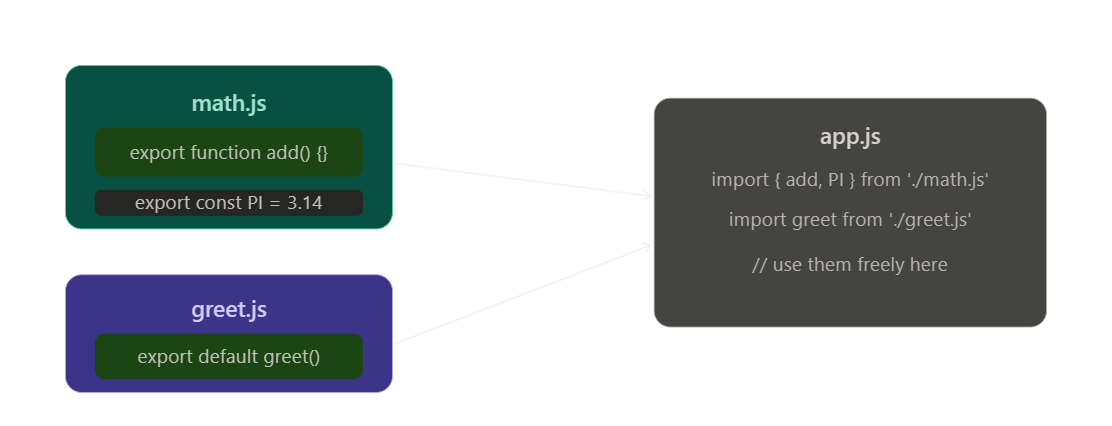
// Importing named exports — curly braces required, names must match
import { add, PI } from './math.js';

// Importing a default export — no curly braces, you choose the name
import greet from './greet.js';

// Using them
console.log(add(2, 3));    // 5
console.log(PI);           // 3.14
greet("Alice");
All the ways you can import
// 1. Named import
import { add } from './math.js';

// 2. Named import with alias (rename it locally)
import { add as sum } from './math.js';

// 3. Default import
import greet from './greet.js';

// 4. Both default and named in one line
import User, { MAX_AGE } from './user.js';

// 5. Import everything as a namespace object
import * as MathUtils from './math.js';
MathUtils.add(1, 2);
MathUtils.PI;
File dependency diagram
As your app grows, imports create a dependency tree — a map of which file relies on which. This is actually a good thing: it makes the structure of your app visible and intentional.
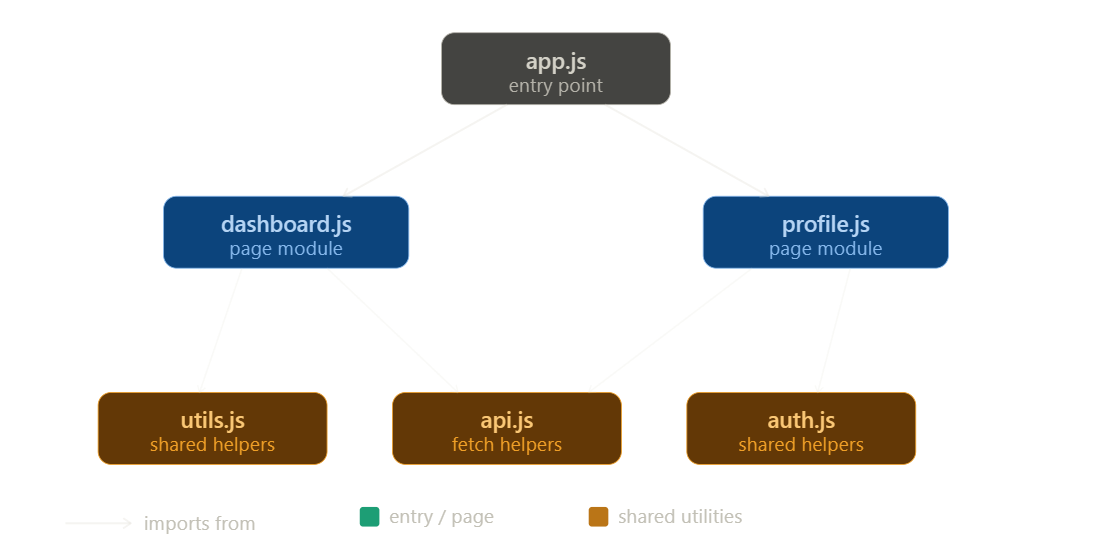
Notice how api.js is imported by both dashboard.js and profile.js. With modules, that's perfectly safe — each file gets its own clean copy of the exports. No conflicts, no shared state accidents.
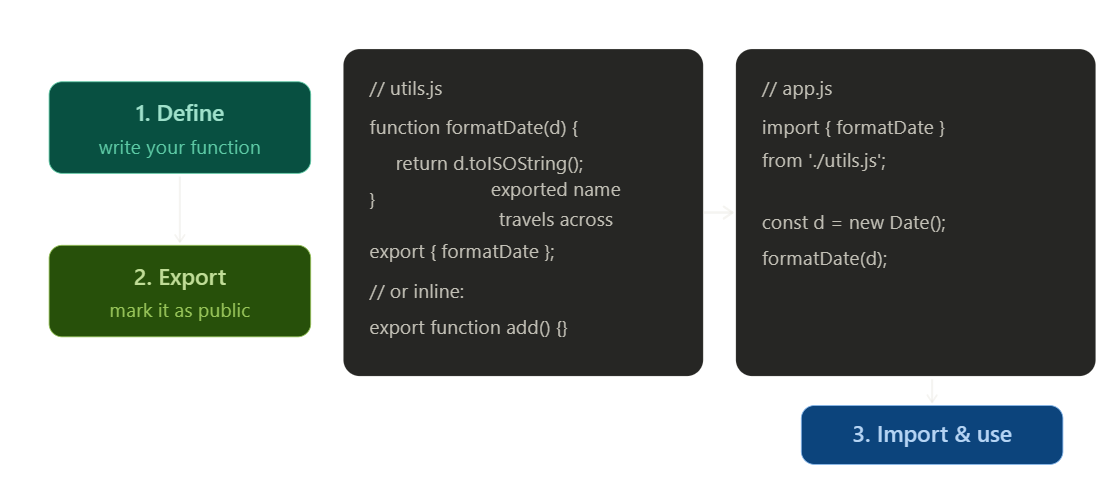
Module import/export flow
Here's how the full round-trip works — from defining something in one file to using it in another:
How imports improve maintainability
Without imports, you'd have no way to know which file depends on what. With them, every dependency is written right at the top of the file — readable at a glance.
// Just by reading the top of app.js, you know exactly what it needs
import { formatDate } from './utils.js';
import { fetchUser }  from './api.js';
import { login }      from './auth.js';
This means:
Deleting a module? Your editor will warn you which files will break.
Renaming a function? You can trace every import and update it confidently.
Understanding a file? Read the first few lines — the imports tell the whole story.
Quick reference
| Import style | Syntax |
|---|---|
| Named import | import { add } from './math.js' |
| Named with alias | import { add as sum } from './math.js' |
| Default import | import greet from './greet.js' |
| Default + named | import User, { MAX_AGE } from './user.js' |
| Import everything | import * as Utils from './utils.js' |
The key takeaway: imports are not just syntax — they are a communication tool. They tell every developer (and every tool) exactly what a file needs to do its job. That clarity is what makes modular codebases easy to read, easy to change, and easy to grow.
4. Default vs named exports
Both default and named exports let you share code between modules — but they behave differently and suit different situations. Knowing when to use each one is a key skill in writing clean, maintainable JavaScript.
The core difference at a glance
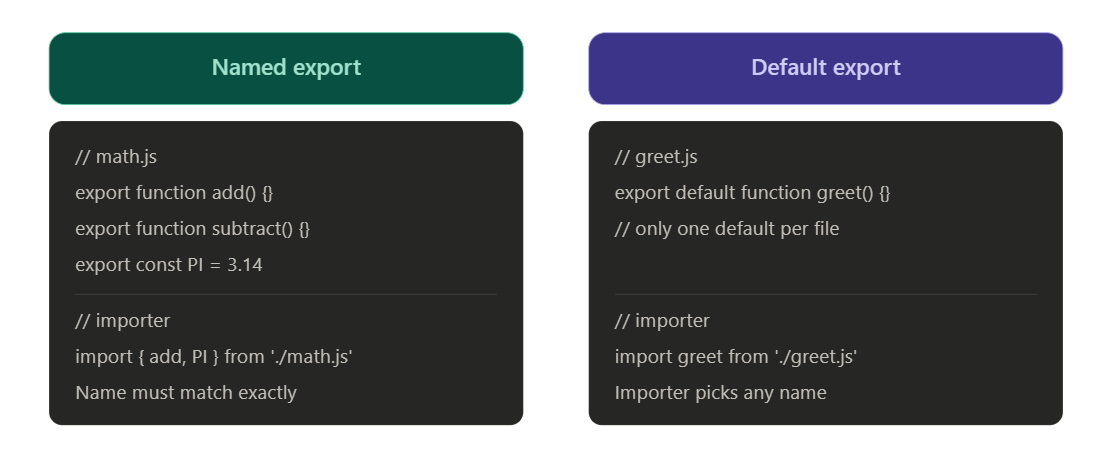
Named exports — one file, many things
Use named exports when a file provides multiple related utilities. A good example is a utils.js file full of helper functions.
// utils.js
export function formatDate(d) { return d.toISOString(); }
export function capitalize(s) { return s[0].toUpperCase() + s.slice(1); }
export const MAX_RETRIES = 3;
// app.js — pick only what you need
import { formatDate, capitalize } from './utils.js';
The import name must match the export name exactly. If it doesn't, JavaScript gives you undefined — silently. That's why most editors autocomplete named imports for you.
You can also rename on import if there's a local conflict:
import { formatDate as fd } from './utils.js';
Default exports — one file, one thing
Use a default export when a file represents a single thing — a class, a component, a primary function.
// UserCard.js
export default function UserCard({ name }) {
  return `<div>${name}</div>`;
}
js
// app.js — name it whatever makes sense here
import UserCard from './UserCard.js';
import Card from './UserCard.js';      // also valid — same module
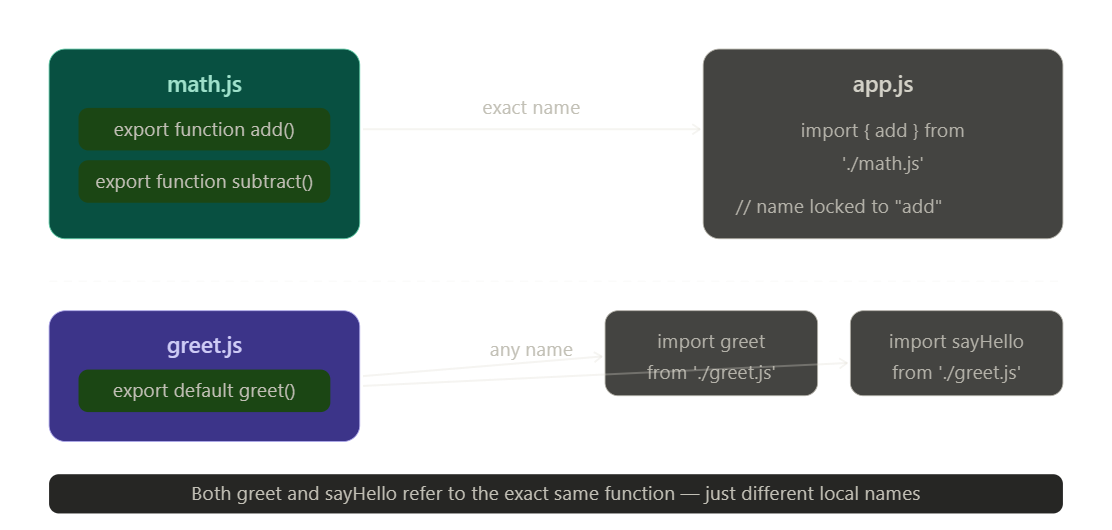
Because the importer freely names a default export, consistency matters. Teams usually agree to always name it the same as the file.
How imports look side by side
Mixing both in one file
You can use both in the same module — a default for the primary export, named for supplementary values:
// user.js
export const MAX_AGE = 120;           // named

export default class User {           // default
  constructor(name) {
    this.name = name;
  }
}
import User, { MAX_AGE } from './user.js';
// default ↑    ↑ named
The default comes first, named ones go in the curly braces — they can coexist cleanly.
When to use which — decision guide
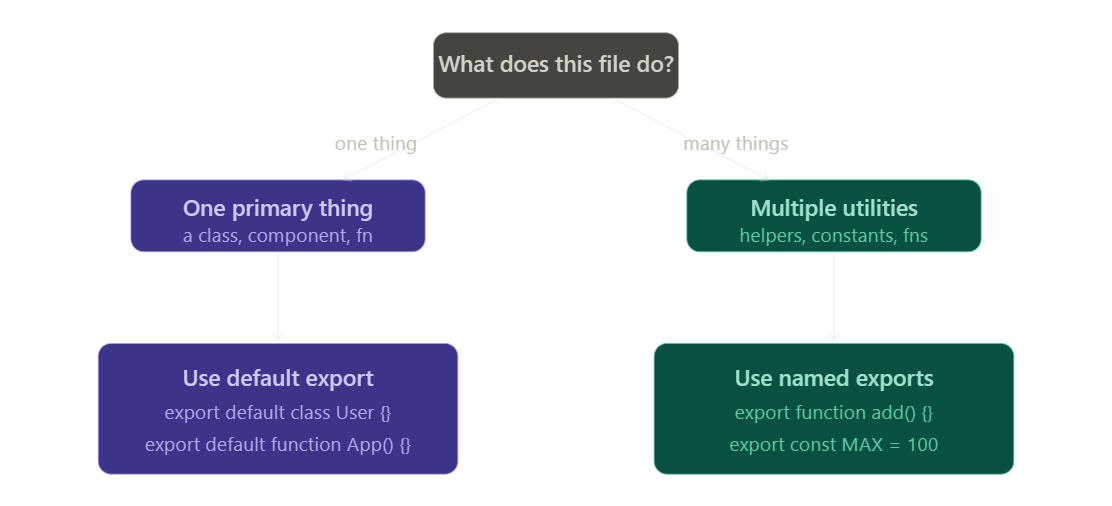
Side-by-side comparison
| Named export | Default export | |
|---|---|---|
| How many per file | Unlimited | Only one |
| Import syntax | { curly braces } |
No braces |
| Import name | Must match export | You choose freely |
| Best for | Utility files, multiple helpers | Classes, components, main function |
| Refactoring safety | High — name mismatch = error | Lower — any name is accepted silently |
| Tree-shaking friendly | Yes — import only what you use | Depends on bundler |
Common mistake to avoid
// ❌ Wrong — trying to use { } on a default export
import { greet } from './greet.js';     // undefined!

// ✅ Correct
import greet from './greet.js';

// ❌ Wrong — missing { } on a named export
import add from './math.js';            // undefined!

// ✅ Correct
import { add } from './math.js';
This is the single most common module bug beginners hit. The rule is simple: curly braces for named, no curly braces for default.
The bottom line: named exports are for files that offer a collection of things; default exports are for files that are one thing. Use that mental model and you'll almost always make the right call.
5. Benefits of modular code
Splitting code into modules isn't just a stylistic choice — it fundamentally changes how maintainable, scalable, and collaborative your codebase becomes. Let's walk through each benefit clearly.
1. Separation of concerns
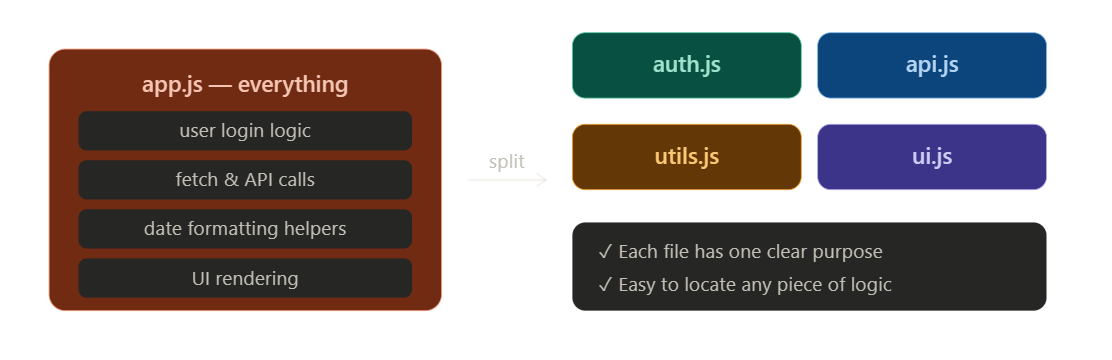
When every file has one job, you always know where to look — and you never have to untangle unrelated logic mixed in the same place.
2. Reusability
Write a utility once, use it anywhere. A well-written module is like a tool you keep in a toolbox — you don't rebuild the hammer every time you need one.
// formatDate.js — written once
export function formatDate(d) {
  return d.toLocaleDateString('en-IN');
}
// Used in dashboard, profile, reports — all import the same function
import { formatDate } from './formatDate.js';
No copy-pasting the same function into three files. If the logic needs to change, you change it once — and every file that imports it gets the update automatically.
3. Maintainability
Modular code is dramatically easier to change over time. Here's why:
Each module acts like a sealed unit. You can open it, fix it, and close it — confident that nothing outside it was disturbed.
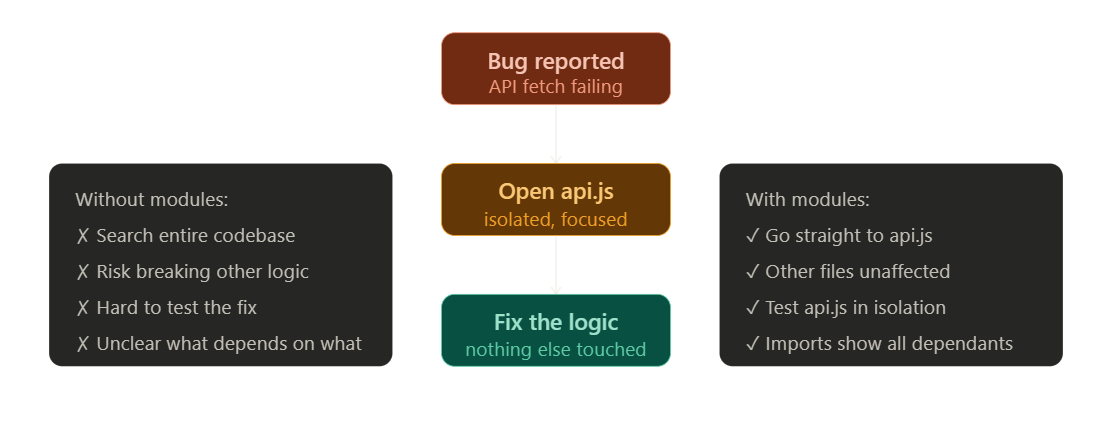
Each module acts like a sealed unit. You can open it, fix it, and close it — confident that nothing outside it was disturbed.
4. Testability
When code is modular, you can test each piece independently — without needing to spin up the entire application.
// math.js
export function add(a, b) { return a + b; }
export function multiply(a, b) { return a * b; }
// math.test.js — test just this module, nothing else
import { add, multiply } from './math.js';

console.assert(add(2, 3) === 5, 'add works');
console.assert(multiply(3, 4) === 12, 'multiply works');
No global state, no side effects from unrelated code — just the function and the test. This is only possible because modules keep their internals private by default.
5. Team collaboration
Modular structure lets multiple developers work simultaneously without conflict.
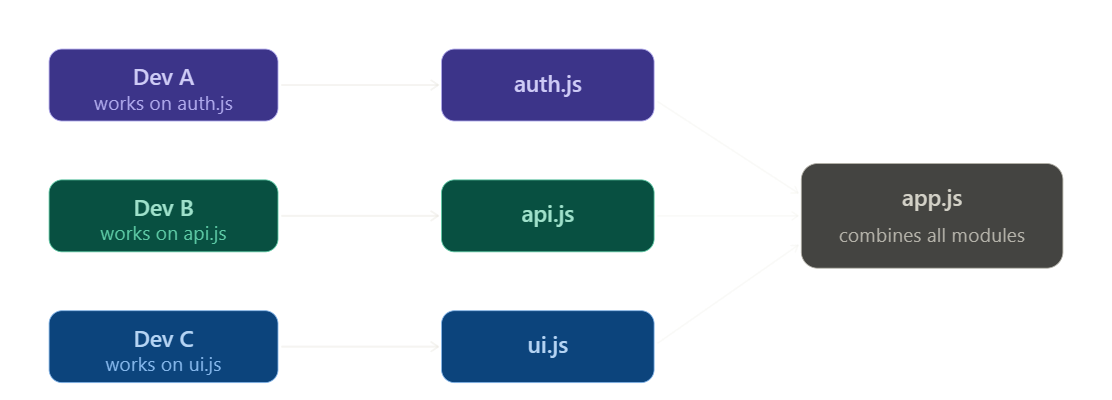
Each developer owns a module. They can build, test, and commit independently — and everything comes together cleanly in app.js. No merge conflicts from editing the same giant file.
6. Scalability
A non-modular app becomes harder to work with as it grows. A modular one stays manageable — because adding a feature means adding a module, not untangling existing code.
// Small app          // Large app — same structure, just more modules
src/                  src/
  auth.js               auth/
  api.js                  login.js
  utils.js                register.js
  app.js                api/
                          users.js
                          products.js
                        utils/
                          format.js
                          validate.js
                        app.js

Quick summary
| Benefit | What it means in practice |
|---|---|
| Separation of concerns | Every file has one job — easy to find logic |
| Reusability | Write once, import anywhere — no duplication |
| Maintainability | Fix bugs in one place — nothing else breaks |
| Testability | Test each module independently — reliable results |
| Collaboration | Each dev owns a module — no merge conflicts |
| Scalability | Add modules as you grow — structure stays clean |
The big picture: modular code isn't just about organisation — it's about confidence. Confidence that changing one thing won't break another. Confidence that your teammate isn't editing the same file. Confidence that you can find, fix, and extend anything without fear. That confidence is what lets software teams build big things reliably.


